DSO Explorer
A step-by-step walkthrough for searching the Digitaal Stelsel Omgevingswet from inside LDE and linking the result to a BPMN subprocess. For the architectural overview and API surface, see DSO Integration.
Before you start
- Open LDE and navigate to the DSO Explorer view in the sidebar (the globe icon).
- Decide which DSO environment you need. Most authority data is published in pre-production first; production carries the authoritative live ruleset. Test anchors per environment are listed in DSO Integration Phase Plan.
- Confirm the environment in Settings → DSO environment. The header badge turns amber for pre-production, green for production.
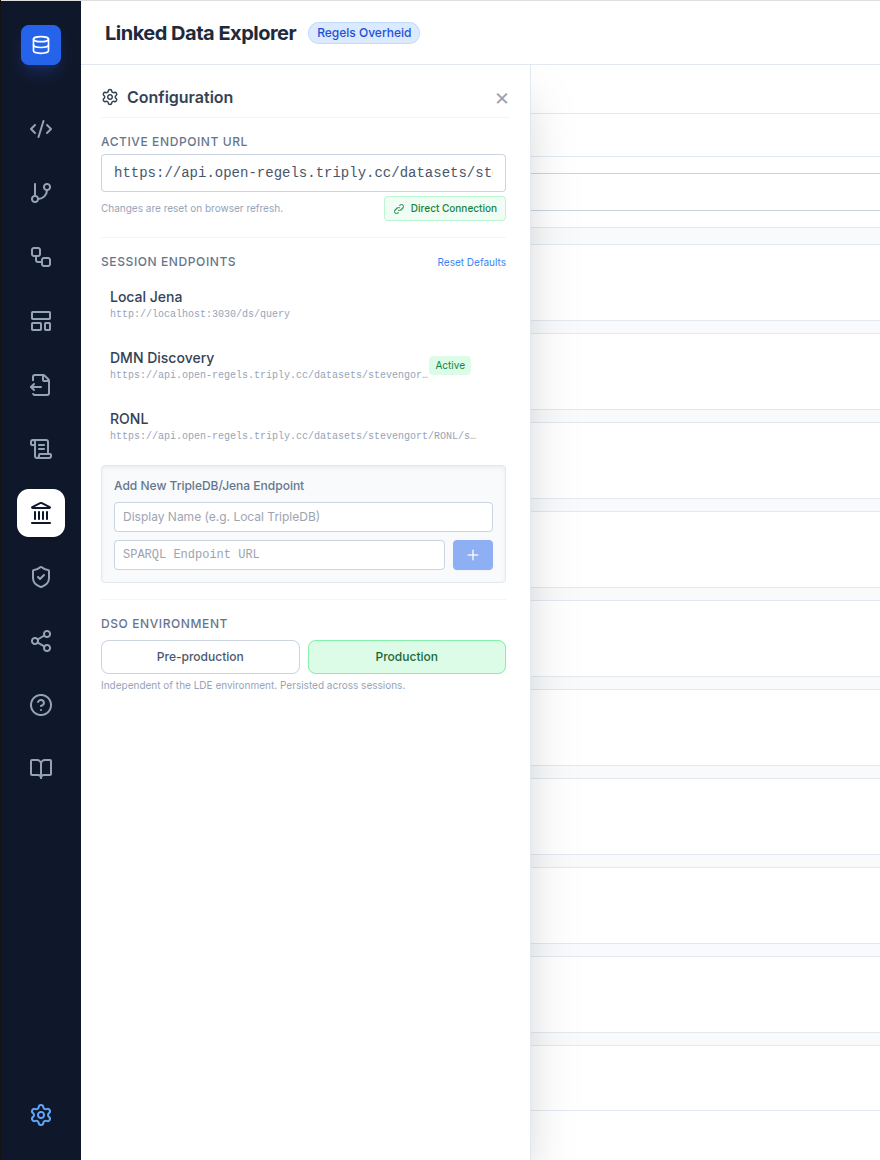
The setting persists in localStorage — closing and reopening LDE keeps the same environment.
Workflow 1 — Find a werkzaamheid by citizen-facing name
Use this when you know the public name of the task (the term a citizen would use on the Omgevingsloket) but not the underlying URN.
- Open the Works tab.
- Start typing — autocomplete suggestions appear after two characters. The list is sorted by
meestGekozen, so the most-used Omgevingsloket terms surface first. - Pick a suggestion or hit Enter to run the full search.
- Click a result to open the detail panel. The panel shows the current version's omschrijving, validity period, and the full version history with start/end dates. (Search and autocomplete come from the Zoekinterface; the detail panel is a separate call to the Opvragen Werkzaamheden API.)
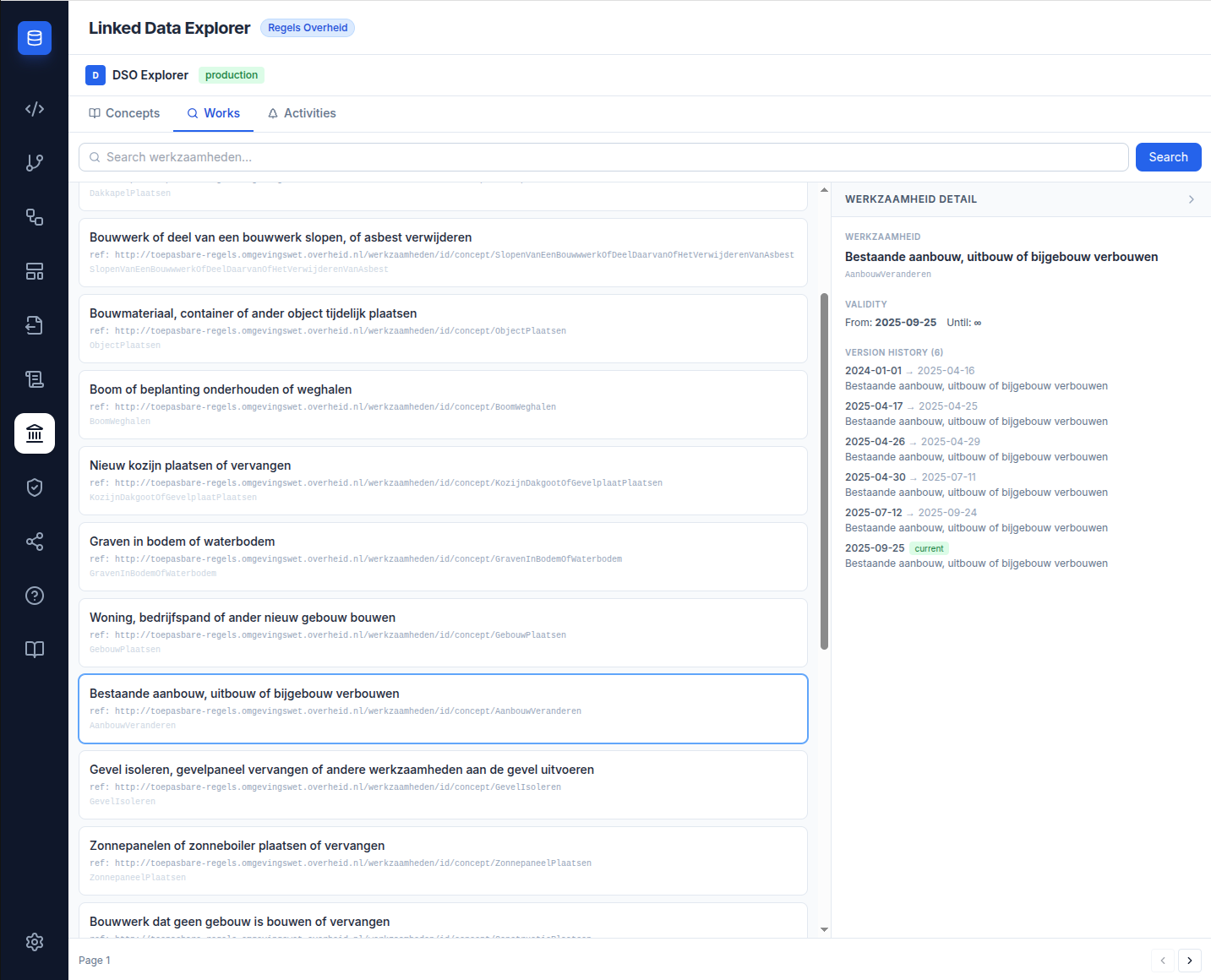
The functioneleStructuurRef URI on each result is the pivot to the STTR file used by the Phase 4 rule extraction (see Workflow 4 below). Copy it now if you'll be linking it to a BPMN subprocess later.
Workflow 2 — Browse activiteiten by authority
Use this when you know which authority publishes the activity (e.g. gemeente Lelystad) and want to see what they have on a given date.
- Open the Activities tab.
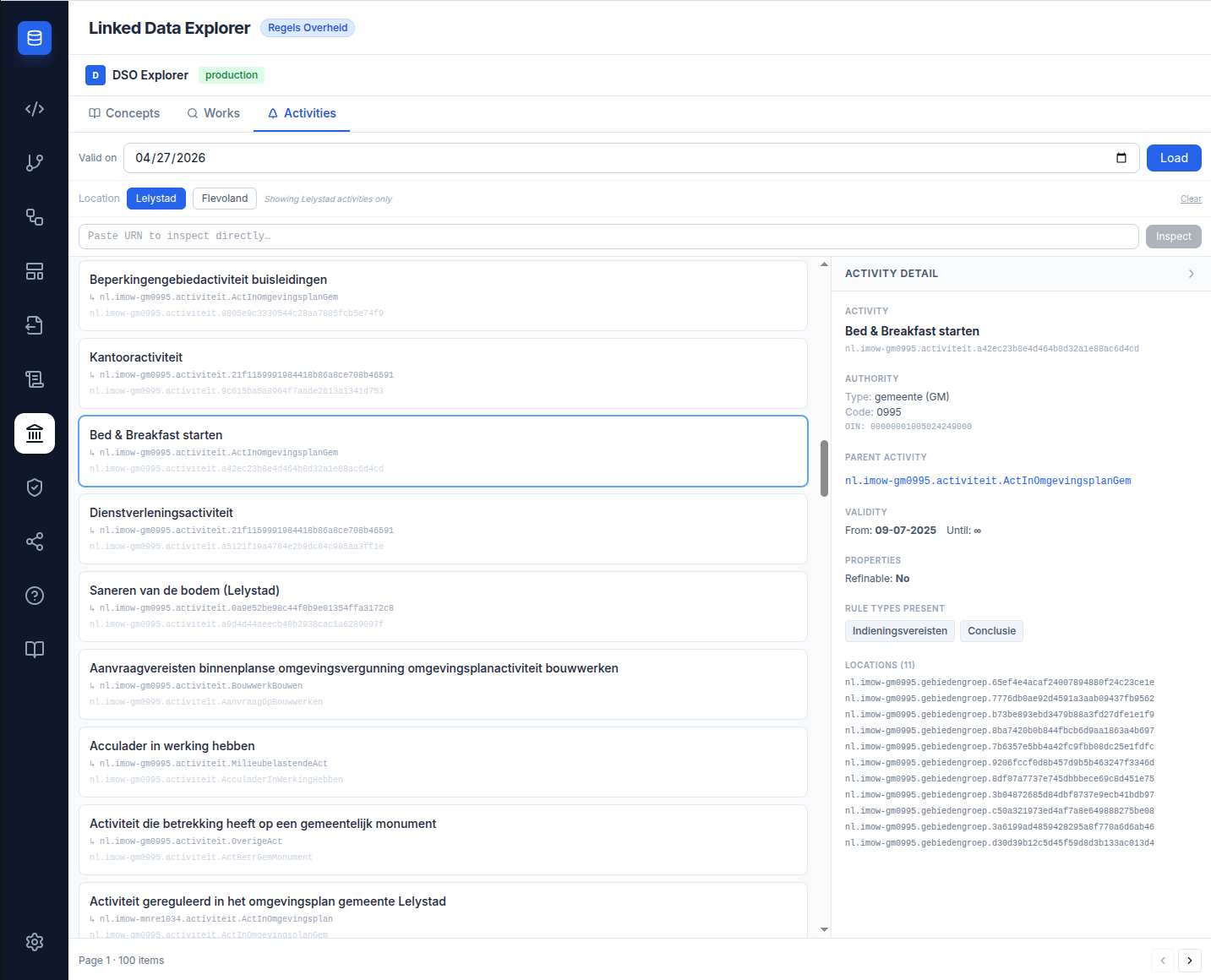
- Pick the Level — gemeente, provincie, waterschap or rijk — and then the Authority. Every municipality, province, water board and ministry with an OIN is listed, and you can type the name to jump to it. The same list supplies the authority name shown when importing a form.
- The date input defaults to today; change it if you need a historical view.
- Click Load. The list refreshes with all of that authority's activiteiten valid on the selected date — every page is fetched and combined, up to 2,000 activities.
Each card shows badges for which rule types are present:
- Conclusie — DMN decision content available
- Indieningsvereisten — application questionnaire available
- Maatregelen — textual measures available
The badges tell you ahead of time which downstream LDE assets the activity can support.
- Click an activity card to open the detail panel.
Activities with many children fill in progressively
The RTR hands LDE only a list of links for an activity's child activities, with no names attached, so the panel looks each child up individually — one request per child, on top of the request for the activity itself. Opening an activity with 23 children means 24 calls. They go out five at a time rather than all at once, so the names appear in waves as each child resolves. Children whose lookup fails or that come back nameless are shown as their raw URN instead of a name; they are still clickable. The backend remembers each activity for five minutes, so re-opening one you have just visited is quick.
Workflow 3 — Verify a URN you already have
Use this when someone has handed you a DSO URN and you need to confirm it resolves and see what it points to.
- Open a BPMN process in the BPMN Modeler.
- Scroll to the DSO Activity section in the footer panel.
- Paste the URN into the input. The button next to it changes from Verify to Save as soon as the text differs from what is stored — it is one button doing both jobs.
- Click it. The URN is written to the process straight away, and LDE then queries the live DSO RTR — always the pre-production one. (A URN already stored on the process is re-verified automatically whenever the panel opens.)
- On success, a teal info card appears below showing the omschrijving, the authority block, and a link icon that opens the URN in the public DSO RTR viewer.
- On 404, a red error appears: "URN not found in DSO".
- The URN is persisted as
ronl:dsoActiviteitUrnon the BPMN process when you click Save in the canvas toolbar.
This panel ignores the DSO environment setting
Unlike the DSO Explorer, the BPMN DSO Activity selector always queries pre-production.
Switching to production in Settings changes nothing here, so a production-only URN — for
example nl.imow-gm0995.activiteit.HoutopstandVellen — will always report "URN not found
in DSO". Confirm such a URN in the DSO Explorer's Activities tab (with the toggle on
production), then paste it in and save it without verification.
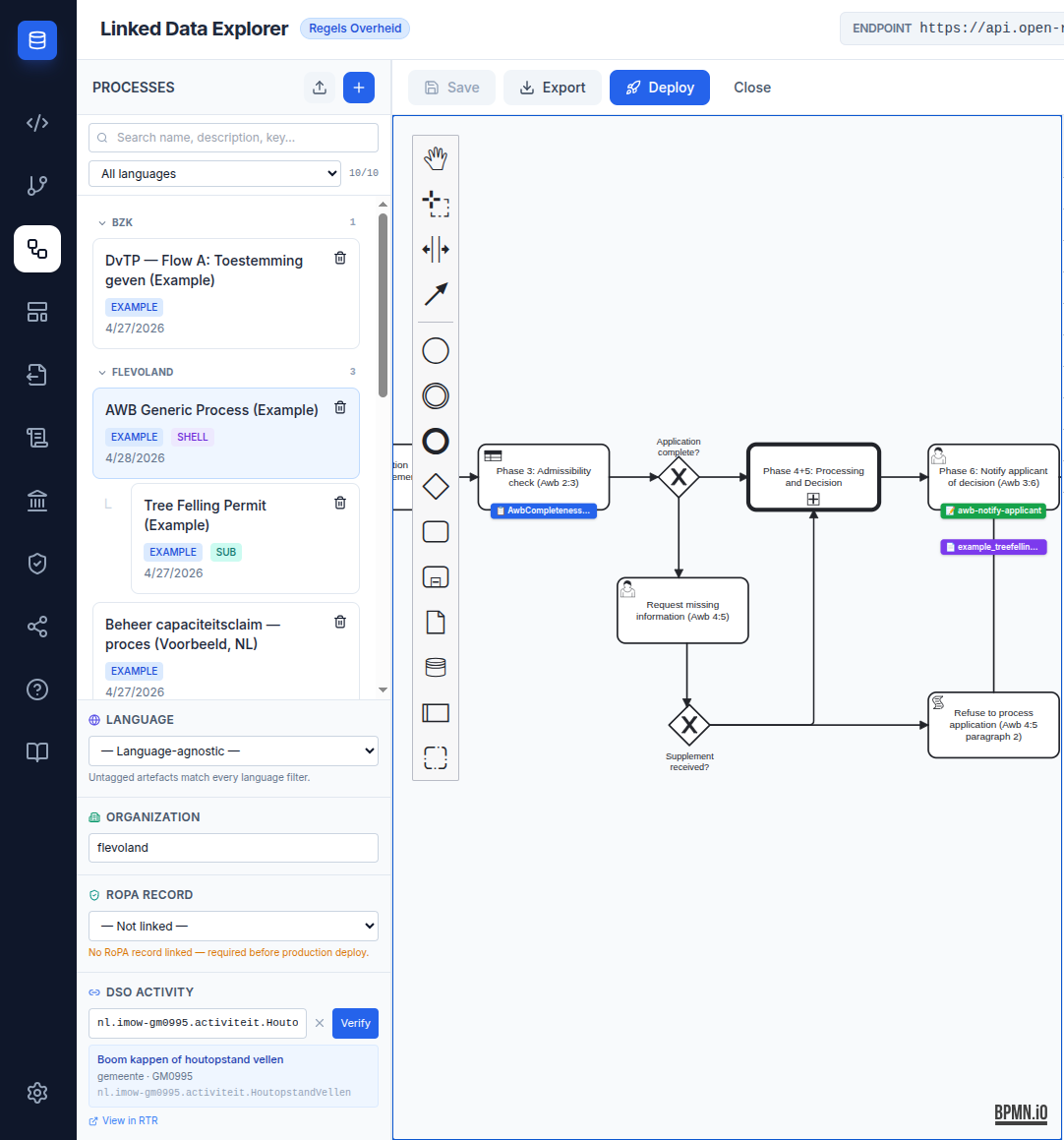
The URN is stored as typed, whether or not verification succeeded — verification is a check, not a gate.
Workflow 4 — Extract an activity's rules into LDE (Phase 4)
Use this to turn a DSO activity's toepasbare regels into LDE assets. Open the activity's detail panel (Workflow 2 or 3) and find the Applicable Rules section, which lists the rules grouped by type (Conclusie / Indieningsvereisten) with validity date and STTR version.
- ↓ STTR — download the raw STTR XML for any rule type.
- ↓ Extract DMN (Conclusie) — download the embedded decision table as a standalone, deploy-ready
.dmn(normalized to DMN 1.3 with FEEL-safe names, outputtypeRefs andcamunda:historyTimeToLive, so it deploys and evaluates on Operaton as-is). - ↓ Form scaffold (Indieningsvereisten) — download a form-js JSON scaffold generated from the questionnaire.
- ↓ Import into LDE (Indieningsvereisten) — save that scaffold straight into the Form Editor as a draft, tagged with the authority name and a green DSO badge — no manual download/import.
- Publish via CPSV Editor (Conclusie) — open the CPSV Editor with a deep-link to publish the extracted DMN to TriplyDB, where the LDE DMN picker (Chain Builder) can consume it.
Workflow 5 — Read an activity's quality profile
Use this to see how legible a published activity's rules actually are — which decisions and inputs are named in words, which are GUIDs, and whether the reasoning can be recovered from what the authority published.
- Select an activity in the Activities tab (Workflow 2 or 3).
- Open the Quality Profile tab. The selection travels with you — the activity, the validity date and the authority all stay as you left them.
- The first open fetches the dossier, which is the most expensive call the viewer makes: it fans out across three DSO APIs. It is then remembered for as long as the tab is open, so going back and forth is instant.
What you are reading. Two separate figures, never one grade:
- Legibility — how readable the rules are as they stand.
- Recoverability — where they are not, how far the dossier could recover the reasoning from the published material.
There is deliberately no overall score. The point of the profile is to compare activities and authorities, and a single grade hides which of the two is weak.
Each decision and input name is marked as semantic (it says what it is), opaque-resolvable (a GUID, but the dossier found what it refers to) or opaque-dangling (a GUID that resolves to nothing). Expand an item to see the evidence: its class, the input's own question text, and the article in the legal source it came from.
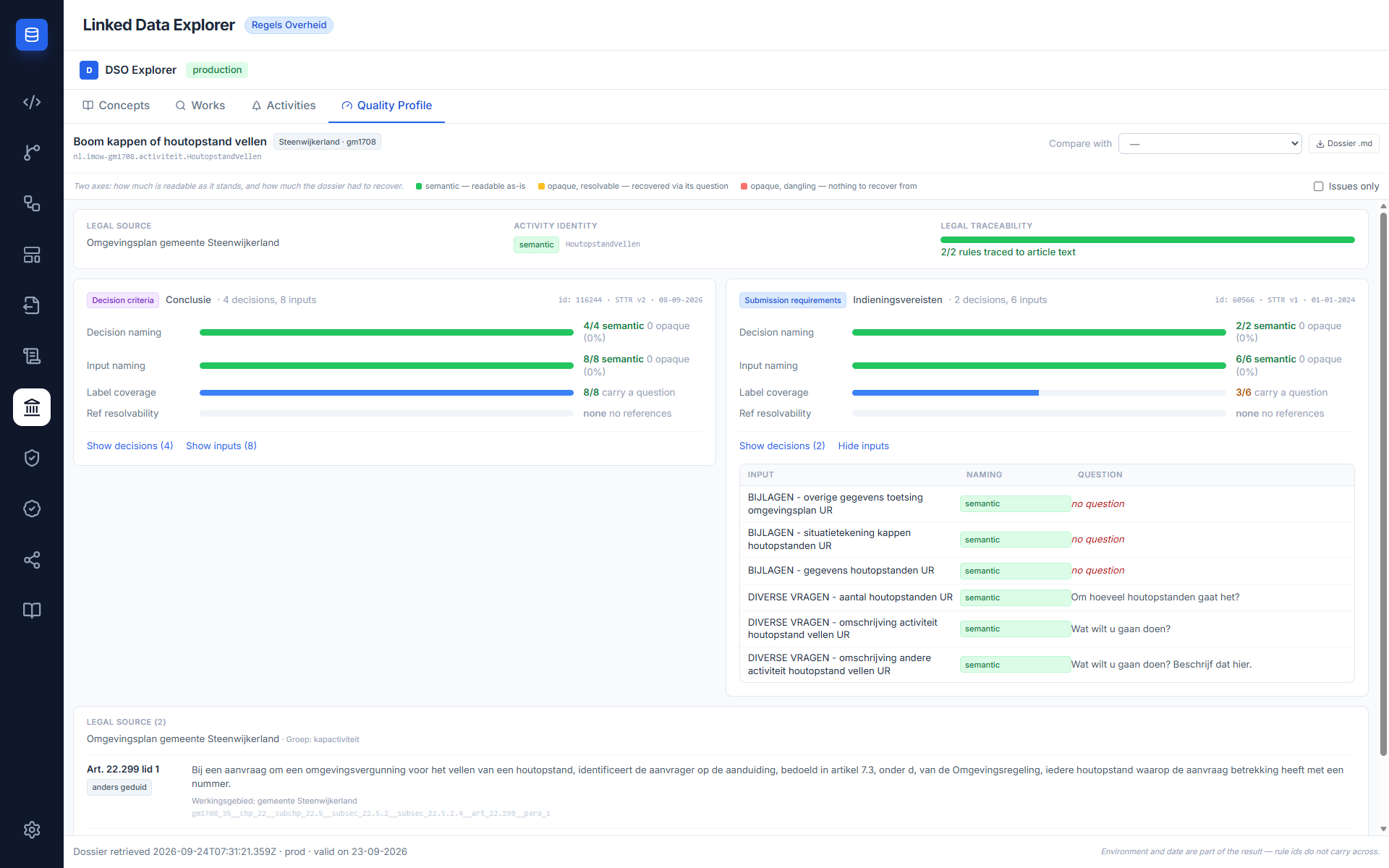
Conclusie and Indieningsvereisten are never added together
They are always shown as two separate rule sets. If one is absent, the tab says so rather than showing zeros — zeros would read as "we measured it and there is nothing", which is a different statement.
- Compare puts a second authority in its own column beside the first. Clear compare sits next to Dossier .md while a comparison is active.
- Dossier .md downloads the whole dossier — legal source, annotations, decision criteria, submission requirements and the profile — as a Markdown document you can circulate.
The compact version of the same figures appears in the activity detail panel, summing both rule sets into one line each. That is a teaser pointing at this tab, not a score, and it only ever shows figures already fetched — selecting an activity never triggers the dossier call.
Common situations
An activity card has only Indieningsvereisten — no Conclusie. That activity has questionnaire logic but no full decision model. You can still link it to a BPMN subprocess and generate a form scaffold from it, but there is no DMN to extract.
The detail panel shows "not available in this environment". The URN was queried with the wrong DSO environment toggle. Switch in Settings and try again.
A werkzaamheid result shows no ref: line. The Zoekinterface didn't return a functioneleStructuurRef for that werkzaamheid version. Try a different version from the version history, or contact the publishing authority — the activity may not yet carry a structuur reference.
Some child activities show as long URNs instead of names. Their individual name lookup failed or returned no omschrijving. The links still work — click through and the child's own detail panel will load.
Loading an authority gives an empty list. Either the authority has no activities for that date, or the date is outside the validity windows of all activities. Try a recent date close to today.
The Quality Profile tab says the activity groups others. That activity is a taxonomy node: it carries no rules of its own, so its dossier is correctly empty. The tab lists its child activities as links — open one and you get that child's own profile. Rijksmonumentenactiviteit, for example, points at RijksmonArchMonument and RijkmonMonument, which each carry a Conclusie and Indieningsvereisten.
The profile shows a rule set as absent rather than as zero. Nothing failed. The activity simply has no rules of that type published, and the tab distinguishes that from a rule set it measured and found empty.
Related documentation
- DSO Integration — overview of the six APIs and what each enables
- DSO Integration Phase Plan — current phase status and test anchors
- BPMN Modeler — DSO activiteit linkage