Getting Started
This guide walks you through the Linked Data Explorer for the first time, from opening the application to executing your first DMN chain.
Prerequisites
- Access to linkeddata.open-regels.nl or the acceptance environment
- A modern browser (Chrome, Firefox, Safari, or Edge — latest two versions)
- No login required for the reference TriplyDB endpoint
Application layout
The application has a narrow left sidebar with navigation icons, and a main content area that changes depending on the active view.
| Icon | View |
|---|---|
| Search | SPARQL Query Editor |
| GitBranch | Chain Builder (DMN Orchestration) |
| Workflow | BPMN Modeler |
| LayoutTemplate | Form Editor |
| FileOutput | Document Composer |
| ScrollText | RoPA Records |
| Landmark | DSO Explorer |
| ShieldCheck | DMN Validator |
| BadgeCheck | SHACL Validator |
| Share2 | Graph Visualisation |
| BookOpen | Changelog |
Settings sits below the rail, pinned. The eleven view icons above it scroll on a short window rather than being pushed off the bottom edge — before v2026.09.2 they were, taking Settings with them, and a window shorter than the rail left both unreachable.
The in-app tutorial was removed in v2026.09.2
A HelpCircle icon used to open a guided tutorial inside the application. It is gone, and this page is where that walkthrough now lives.
Your first chain execution — 5-minute walkthrough
This walkthrough uses the Heusdenpas chain: three DMNs from SVB, SZW, and the Heusden municipality that together assess eligibility for the Heusdenpas social benefit pass.
Step 1 — Open the Chain Builder
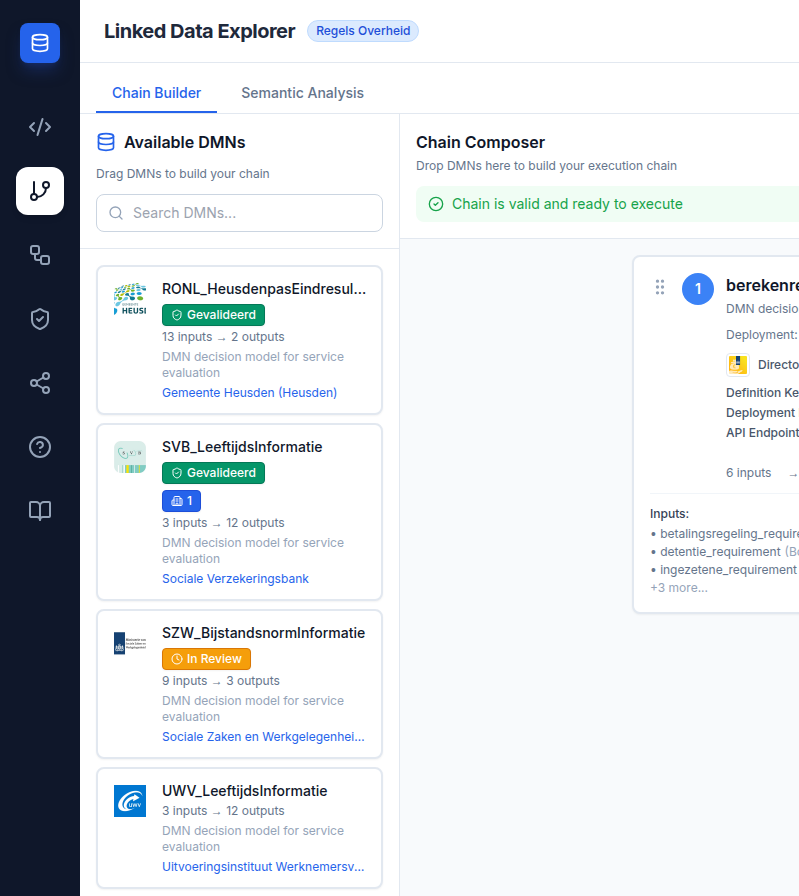
Click the GitBranch icon in the left sidebar. The view splits into three panels: Available DMNs (left), Chain Composer (centre), and Configuration (right).
Step 2 — Verify DMNs are loaded
The Available DMNs panel should show several DMN cards. If it is empty, check that the active endpoint is set to the RONL TriplyDB dataset in the configuration panel. You should see SVB_LeeftijdsInformatie, SZW_BijstandsnormInformatie, and at minimum one Heusden DMN.
Step 3 — Build the chain
Drag SVB_LeeftijdsInformatie into the Chain Composer. Then drag SZW_BijstandsnormInformatie below it. The validation panel should show a green checkmark: "Chain is valid and ready to execute."
Step 4 — Provide inputs
The input form in the Configuration panel shows the inputs the chain needs from you. Fill in a geboortedatum (date of birth in YYYY-MM-DD format, e.g., 1960-01-01).
Step 5 — Execute
Click Execute. The execution panel shows per-step progress with timing. When complete, the results panel shows the final output values.
Smoke test checklist
Use this after any configuration change to verify core functionality:
- Backend health:
GET https://backend.linkeddata.open-regels.nl/v1/healthreturns"status": "healthy" - DMN list loads in Chain Builder (at least 3 cards)
- Dragging two DMNs into the composer produces either a green or amber validation status (not an error)
- An exact-match chain (SVB → SZW) shows green validation and active Execute/Save/Export buttons
- Clicking Execute with valid inputs returns results without console errors
- SPARQL Query Editor: clicking Run Query returns results in the table
Next steps
- Running SPARQL Queries — use the query editor to explore the knowledge graph directly
- Building DMN Chains — detailed chain-building workflow
- BPMN Modeler — embed decision references in BPMN process diagrams