Infra-board
portfolio · fases
Infra-board is portfolio steering for infrastructure projects. It organises projects into phase swimlanes, from planning through delivery, with per-project status and RIP management.
On opening the board you see projects grouped by phase, with their status and RIP information, so the portfolio's progress is visible in one view.
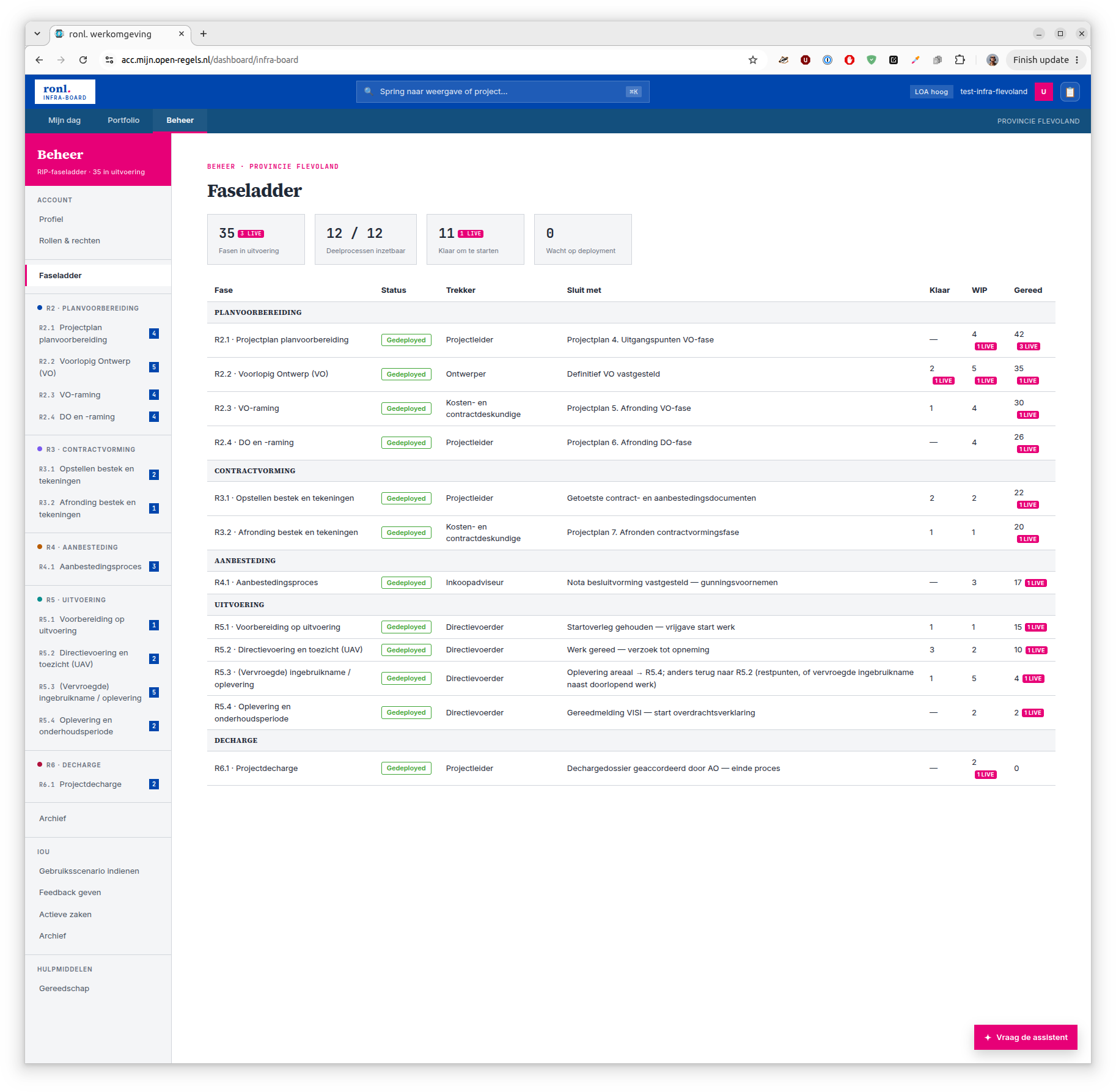
Since September 2026 the Faseladder reads twelve of twelve deelprocessen inzetbaar — every RIP phase from R2.1 through R6.1 is modelled and deployed, where previously only R2.1 was. Two things follow for you:
- Finishing a phase readies the project for the next one. A completed instance moves its project into the following phase's Starten list automatically, so you no longer start each phase from a standing position.
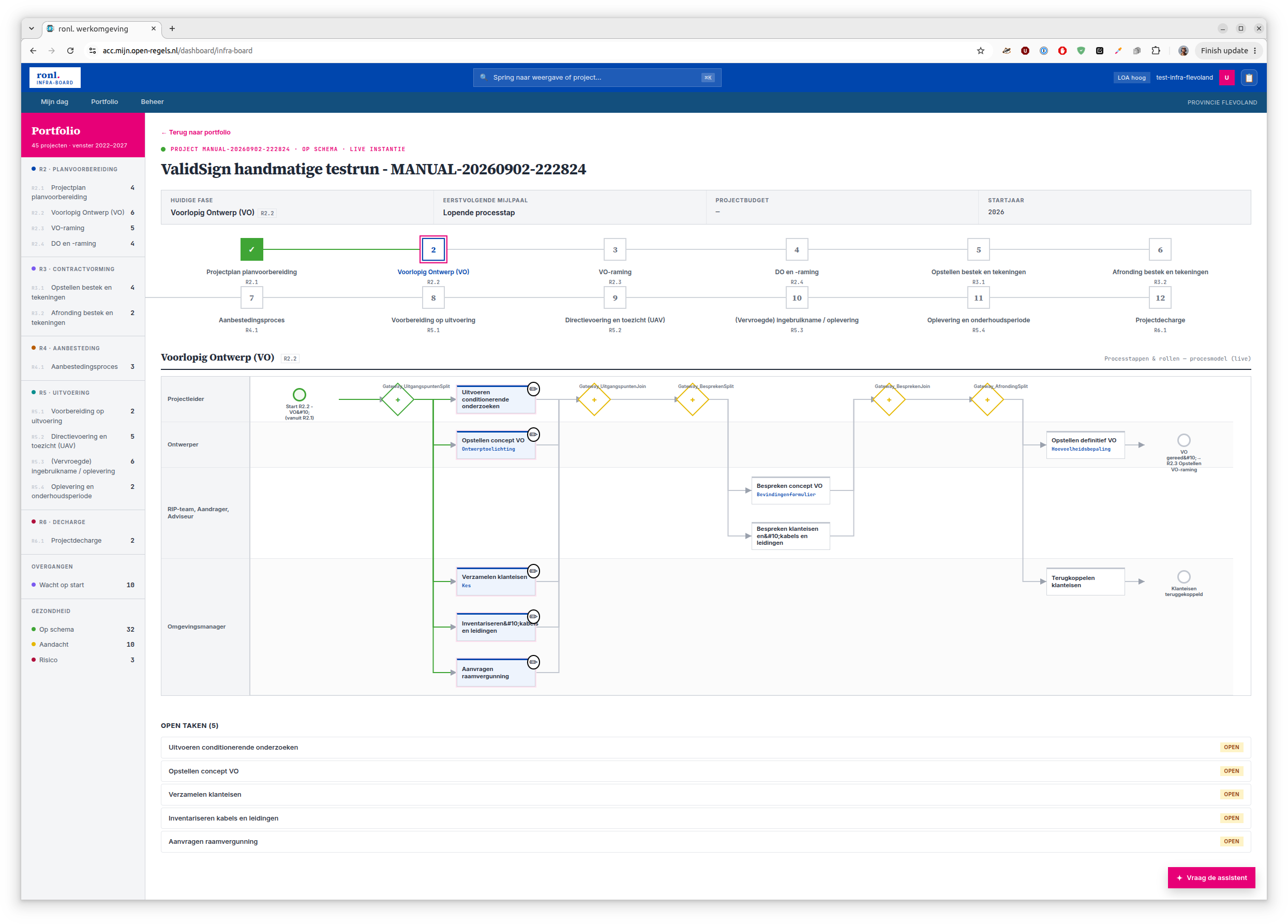
- Every phase has a real diagram. Opening a project shows the process drawn from the model actually deployed on the engine, not a hand-maintained sketch — including its rework loops, and coloured by what genuinely ran when you select a finished rung.
One number is deliberately absent: R5.4 shows — rather than a Klaar figure. Klaar is derived from the preceding phase's completions, and R5.3 has four possible endings — only one leads to R5.4, and one of the others lets a project legitimately complete R5.3 more than once. Any number there would overstate R5.4's candidates without the screen being able to show why, so none is given.
Starting a project on a phase
Starting R2.1 from its phase page asks you for two things first: a Projectnummer and a Projectnaam. Both are required — the R2.1 starten button stays disabled until each holds something more than spaces — and both are trimmed before they are sent.
Naming it here is what makes the project recognisable everywhere at once. The number and name travel with the process from the moment it starts, so the portfolio, the command palette and the phase page's WIP and Gereed tables all show the project rather than a placeholder. The intake form that follows asks for the same two fields and opens already filled in with what you typed, so nothing is entered twice.
A project started some other way is named by its state, not by a dash
An instance started outside this screen has no number or name until its intake form is submitted. Rather than showing a dash, the board says what it actually is: "Nieuw R2.1-project · intake open" for a nameless R2.1 instance, shown next to the first characters of its instance id, and "RIP R2.x project" for one that has moved past R2.1.
The board notices a project started elsewhere. If an instance is started outside the board — by a script, or by someone else — the live rows pick it up when you come back to the tab, and when you switch between Mijn dag, Portfolio and Beheer. A page reload is no longer needed for it to appear.
Signing a phase-exit approval
Some approval tasks are signed rather than merely ticked. Where a task carries a signature requirement in its process model, the panel that normally shows a form shows a signing panel instead — you sign the phase document without leaving the board.
The flow, from a project leader's point of view:
- Claim the task. An unclaimed task shows the claim button as usual.
- The signing panel replaces the form. It prepares the document, then opens the signing ceremony in the panel itself.
- Sign. The panel watches for completion on its own.
- The task completes. The signed document and its evidence summary are archived to the project's eDOCS workspace, and the process moves on.
You do not complete the task by hand — it completes when the signature lands.
If the panel looks stuck after you have signed
The panel polls for the result, and a signature can complete through either the platform's callback or a periodic sweep. If it has not resolved after a minute or so, reload the page: the status is read fresh, not held in the panel.
For how this works underneath — the signing platform, the environment locks, and what happens if the callback never arrives — see ValidSign phase-approval signing.
Brief by design
This board is on the acceptance environment. The page covers what it is for and what you see; a full step-by-step guide follows when it reaches production. See Getting Started.